
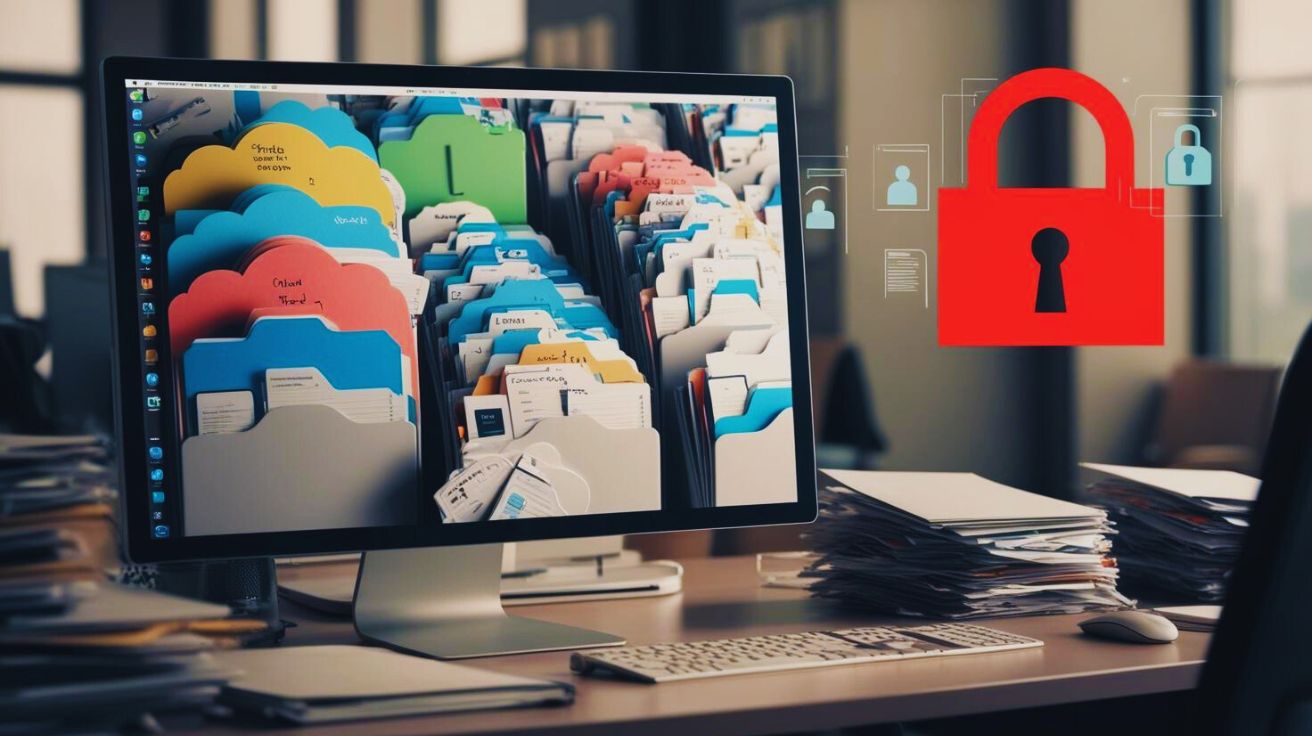
It’s Friday afternoon at a car dealership. The office manager needs a signed purchase agreement, but the document could be in a shared drive, an email attachment, or a folder on someone’s desktop. The team has cloud storage, yet finding the correct file is still a problem.
This is one of the disadvantages of cloud storage that businesses often discover as document volumes grow.
Cloud storage makes files accessible, but accessibility doesn’t automatically mean organization, security, or control.
This guide explores nine common cloud storage disadvantages, their impact on business operations, and practical ways to address them.
What Are the Disadvantages of Cloud Storage for Business?
The main disadvantages of cloud storage include internet dependency, recurring costs, security risks, disorganized files, inconsistent naming, access-control problems, and difficulties managing document versions. These problems can become more noticeable as businesses grow, particularly when teams use general-purpose storage for sensitive records and document-heavy workflows.
Cloud storage remains useful for everyday collaboration. However, businesses handling invoices, contracts, employee records, and customer documents may need additional controls to manage those files effectively.
Why Do Cloud Storage Problems Get Worse as Teams Grow?
Cloud storage platforms such as Google Drive and OneDrive are popular because employees can upload, share, and collaborate on files without maintaining physical storage infrastructure.
For a small team, a shared folder structure may work well.
Problems can develop when more departments, employees, and documents enter the picture.
Consider a business growing from 10 employees to 50. Different departments may introduce their own naming conventions, folder structures, and sharing practices.
The accounting department saves invoices by vendor. Sales organizes contracts by customer. HR maintains separate folders for employee documents.
Over time, employees may encounter duplicate files, outdated versions, and uncertainty about who can access sensitive records.
These issues aren’t inevitable. Cloud storage platforms provide administrative controls, but organizations must configure and maintain them.
The challenge is establishing document-management practices that remain consistent as the business grows.
What Are the 9 Disadvantages of Cloud Storage for Growing Teams?
Common Cloud Storage Limitations
Before examining business-document problems, it’s important to acknowledge the broader limitations of cloud storage.
Cloud services generally depend on a reliable internet connection. Service outages can interrupt access, subscription costs may increase with storage and user requirements, and some plans impose storage or transfer limits.
Businesses must also consider data privacy, geographic storage locations, and contractual responsibilities when using third-party providers.
These limitations can affect cloud-based document management systems as well. Choosing a DMS does not automatically eliminate internet dependency, service interruptions, or cloud security responsibilities.
For document-heavy businesses, nine additional challenges deserve attention.
1. Files Scattered Across Folders, Email, and Desktops
What it looks like:
A dealership’s sales representative saves a purchase agreement in an email thread. Accounting stores another copy in a shared folder, while the signed version remains on someone’s desktop.
When the office manager needs the final agreement, nobody knows which location contains the correct document.
Root cause:
Cloud storage accepts files wherever people upload them. Without an agreed filing structure or configured automation, nothing consistently directs documents to their intended locations.
Fix:
Establish a standard folder structure based on document type, department, or business process.
For higher-volume workflows, consider automated classification and filing so documents can be organized when uploaded rather than sorted manually afterward.
This removes some repetitive filing work and reduces dependence on employees remembering where each document belongs.
2. Time Lost Searching for Documents
What it looks like:
A finance manager needs a vendor agreement from the previous year. She checks the contracts folder, searches by vendor name, and asks colleagues whether they have another copy.
The document exists, but finding it interrupts her work.
Root cause:
Employees often remember a document by its contents or business purpose rather than its filename.
When naming conventions vary and scanned documents aren’t searchable, locating the right file becomes more difficult.
Fix:
Use consistent metadata and searchable document content.
Optical Character Recognition (OCR) can make text inside scanned PDFs searchable. Metadata such as vendor name, invoice number, date, or document type provides additional ways to locate records.
For example, a dealership employee could search using a VIN recorded in searchable document content or metadata rather than navigating several folders.
The goal is to make retrieval less dependent on remembering where someone stored the file.
3. Inconsistent File Naming Conventions
What it looks like:
Three employees save similar invoices under different names:
Invoice_March.pdfACME_03-2026.pdfScan0042.pdf
Although the documents relate to the same accounting process, their filenames offer little consistency.
Root cause:
Different departments develop their own naming habits. New employees may follow previous practices, and scanned files often arrive with generic names.
Fix:
Adopt a clear naming convention using meaningful identifiers.
For example:
VendorName_InvoiceNumber_YYYY-MM-DD.pdf
Where document volumes justify automation, AI-powered naming can use extracted information to suggest or generate filenames based on predefined rules.
Automated naming helps keep names consistent while reducing repetitive manual work.
The naming rules should still include a process for reviewing exceptions or incorrectly extracted information.
4. Too Many People Have Access to Sensitive Files
What it looks like:
An employee moves from HR to operations but retains access to confidential personnel records.
Alternatively, a whole department can see salary files because they sit inside a broadly shared drive.
Root cause:
Permissions can accumulate when employees change roles, departments, or responsibilities. Without periodic reviews, access may remain active longer than necessary.
Fix:
Use permission levels based on job role and the principle of least privilege.
Employees should receive the access necessary for their responsibilities rather than access to every document in a shared department.
Review permissions regularly and update them when someone changes roles or leaves the organization.
5. Risky Shared Links and Email Attachments
What it looks like:
An employee sends a confidential PDF using a link that allows anyone possessing it to open the document.
The recipient forwards the link to another person.
Similarly, a sensitive PDF sent as an email attachment may remain in recipients’ inboxes long after the original business purpose ends.
Root cause:
Sharing tools prioritize convenience, and employees may choose options that allow broader access than intended.
Once documents are downloaded or forwarded, the original sender may have limited control over those copies.
Fix:
Use identity-based sharing, restricted permissions, and link-expiration settings where available.
For sensitive documents, consider controlled sharing methods that let administrators manage access and review supported activity records.
No sharing method can guarantee that a recipient will not create an external copy, so employee guidance remains important.
Not sure who can reach your files right now?
Download the free Who Can Access Our Files? Audit Sheet to review employee permissions, external sharing, and access to sensitive documents.
6. Compliance and Audit Challenges
What it looks like:
An auditor asks who had permission to access certain customer records and whether document changes were recorded.
The operations team must check multiple systems to gather the available evidence.
Root cause:
Businesses may store documents without establishing consistent access reviews, retention practices, or activity-monitoring procedures.
Some cloud-storage platforms offer administrative audit logs and retention capabilities, but their availability varies by subscription and configuration.
Fix:
Use appropriately configured access logs, version history, and retention rules as part of routine document-management processes.
These controls can support audit preparation, but software alone does not establish regulatory compliance.
For example:
- Automotive: The FTC Safeguards Rule requires covered dealerships to maintain appropriate information security programs for customer information.
- Healthcare: HHS guidance explains the conditions for using cloud services to maintain electronic protected health information, including applicable business associate agreements.
- Education: The U.S. Department of Education explains relevant FERPA considerations when schools use third-party applications.
Organizations must evaluate their own legal requirements, vendor arrangements, and operational safeguards.
7. Manual Splitting and Renaming of Scanned Files
What it looks like:
A dealership scans a batch of vehicle-related paperwork into one large PDF.
The office administrator must identify where each document begins, separate the pages, rename the resulting files, and place them in the appropriate folders.
The same problem can occur with school enrollment records, mortgage files, and accounting documents.
Root cause:
Scanners often produce a single PDF for an entire batch. Ordinary cloud storage does not necessarily identify individual document boundaries or classify mixed scanned records.
Fix:
Use document-processing tools that support automatic splitting, classification, and sorting.
For supported document types, automation can help separate multipage files, identify relevant information, and organize the results according to predefined rules.
A review step is valuable for unclear scans, missing pages, or incorrect classification.
This can reduce repetitive processing without assuming every document will be classified correctly.
8. Version Mix-Ups and Accidental Deletion
What it looks like:
Two employees download different versions of a lease agreement.
One makes changes while the other sends an older copy to the customer.
Later, nobody is certain which version was approved.
In another situation, an employee accidentally deletes an important file and discovers that the platform’s recovery window has expired.
Root cause:
Version history is less effective when employees work on separate downloaded copies rather than a shared managed document.
Recovery also depends on the platform’s deletion policies, retention settings, and available backups.
Fix:
Establish a clear process for identifying the current document version and preserving previous revisions.
Use version-control features to track changes, restrict editing of finalized records where appropriate, and maintain recovery procedures suited to the importance of the documents.
Version history, audit trails, and backups serve different purposes. Businesses should evaluate all three rather than assume one can replace the others.
9. Your Files Export, but Your Structure May Not
What it looks like:
A company decides to switch document-storage platforms.
It successfully exports thousands of files but discovers that the migration requires additional work to recreate permissions, metadata, version history, and established document relationships.
Root cause:
Export capabilities differ between vendors.
Although files may be portable, the information and configuration used to manage those files may not transfer in the same format.
Fix:
Before choosing a platform, ask what its export process includes.
Check whether it supports exporting documents, folder structures, metadata, and version information in usable formats.
Review migration support, contract termination conditions, and potential fees.
The objective is to understand what moving your documents would involve before a future migration becomes necessary.
Cloud Storage vs. Document Management System: What’s the Difference?
Cloud storage and document management systems serve related purposes, but they emphasize different workflows.
General-purpose cloud storage supports file availability, synchronization, sharing, and collaboration. A document management system (DMS) adds capabilities focused on organizing, retrieving, processing, and controlling business records.
| Capability | General-Purpose Cloud Storage | Document Management System |
|---|---|---|
| File organization | Folders, labels, and available organizational tools | Structured filing, metadata, and configurable classification |
| Naming | Usually user-defined; automation varies | Naming rules and potentially automated naming |
| Search | Filename and content search, depending on platform | OCR, metadata, and document-focused search |
| Access control | User, group, and sharing permissions | Role-based and potentially document-level permissions |
| Audit trails | Available features vary by plan | Document-activity logs, with coverage depending on system |
| Compliance support | Security and governance tools vary | Document-focused controls that may support compliance processes |
| Version control | Version history and recovery options vary | Managed revisions and document-version tracking |
| Data export | File export; metadata portability varies | Export capabilities depend on the vendor and configuration |
Neither category automatically provides every capability listed.
For organizations with simple document requirements, a well-managed cloud-storage service may be sufficient.
A DMS becomes more relevant when document classification, retrieval, versioning, and controlled workflows require additional structure.
For a detailed comparison, read Cloud Storage vs. Document Management System: What Should a Small Business Choose?.
When Should a Business Consider a Document Management System?
A business does not need a DMS simply because it uses cloud storage.
The decision should depend on whether existing tools and processes can handle its document-management requirements.
Consider whether your team regularly experiences these situations:
- Employees search multiple locations for the same document.
- Scanned PDFs are difficult to identify or retrieve.
- Naming conventions vary significantly across departments.
- Sensitive records are accessible to more people than necessary.
- Staff cannot easily identify the latest approved version.
- Document-processing tasks take substantial manual effort.
- Audit preparation requires reconstructing information from separate systems.
Start by reviewing your current platform’s capabilities. Better folder structures, consistent naming rules, permission reviews, and employee training may resolve some problems without replacing the software.
When those improvements are insufficient, evaluate a DMS based on the specific workflows causing difficulty.
The important question is not whether your business has outgrown cloud storage. It is whether your existing document-management process still supports the way your team works.
How Does Docupile Help Address Cloud Storage Challenges?
Docupile is a cloud-based document management system that helps businesses organize, search, and control business documents.
Its AI Auto Naming and Auto Foldering features help reduce manual file organization. OCR search makes text within supported scanned documents searchable, while custom metadata provides additional ways to categorize and retrieve records.
For teams processing batches of scanned paperwork, Docupile’s document splitting and sorting capabilities can help reduce repetitive preparation and filing work.
Version Control helps teams review document revisions, while Role-Based Access supports permissions according to employee responsibilities.
Audit Trail capabilities provide visibility into supported document activities, helping teams investigate changes and prepare relevant records for reviews.
These features can be useful across industries, from dealerships managing deal paperwork to administrative teams handling contracts, invoices, and personnel files.
The goal is to make business documents easier to organize, locate, and manage within a structured workflow.
Moving from Cloud Storage to Better Document Management
The disadvantages of cloud storage come from different sources. Some, such as internet dependence and service interruptions, are characteristics of cloud services. Others develop when businesses use general-purpose storage without consistent document organization, access management, and operational controls.
For growing teams, the solution isn’t necessarily to abandon cloud storage.
It may be enough to improve existing processes. Where document requirements are more complex, a dedicated DMS can help add organization, automation, and control.
The right approach is the one that helps employees find the documents they need, manage sensitive information appropriately, and maintain records that support everyday operations.
See how Docupile helps your team organize documents, find files faster, and manage access.


